The Y-DNA Matches page allows you to view your direct paternal connections. This page can be arranged in two different layouts: the Detail View and the Table View. This article will explain the information available in the Table View layout. For information on the Detail View, please click or tap here.
Accessing the Y-DNA Matches Page - Table View
You can access the mtDNA Matches Page from your dashboard or your navigation bar.
To access from your dashboard:
- Sign in to your kit.
- On your dashboard, locate the Y-DNA Results & Tools section.
- In the Y-DNA Results & Tools section, click the Y-DNA Matches button.
To access from your navigation bar:
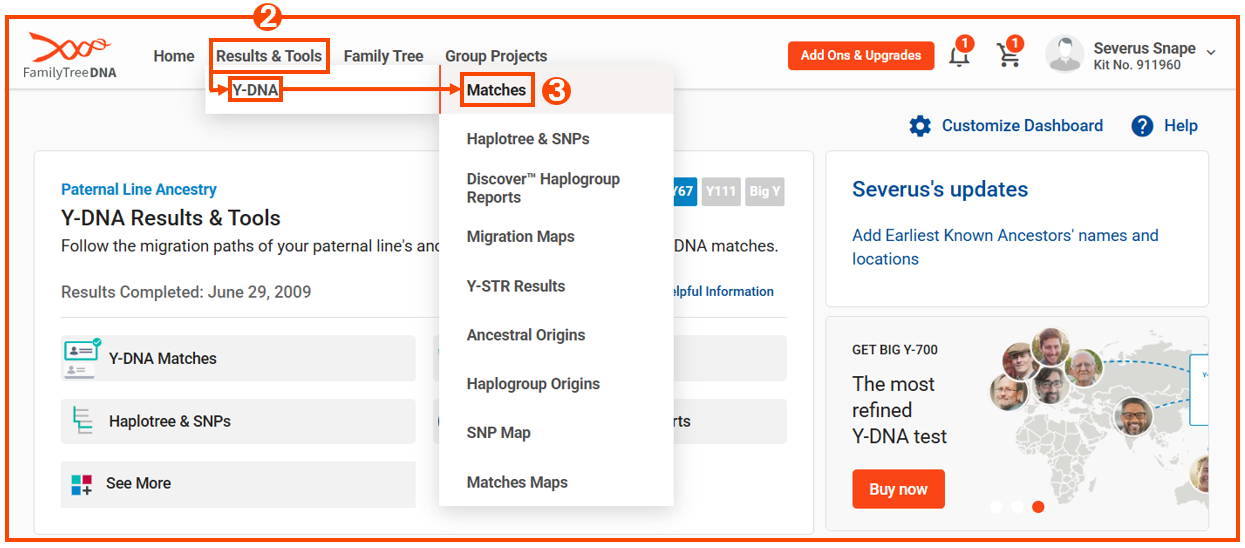
- Sign in to your kit.
- Hover your mouse over Results & Tools on the navigation bar at the top of the page.
- Follow the drop-down menus to Y-DNA > Matches.
Y-DNA Matches - Table View Overview
The Table View of the Y-DNA Matches Page contains the following information:
- Detail View - Toggles between the Detail View and Table View.
-
Exact Search - Filters your matches to only those who meet the exact keyword(s) entered in the Search Field.
- For example, if you enter "I-FT759" in the Search field, it will filter your matches to display only those that belong to I-FT759, but not matches on a more or less refined haplogroup such as "I-M253."
- Search field - Enter a name, Y-DNA haplogroup, or paternal country of origin. The search results can be adjusted in the Search Criteria Dropdown menu.
-
Search Criteria Dropdown menu - Allows you to filter matches based on the following:
- All - Includes only matches containing the name, mtDNA Haplogroup, or Paternal Country of Origin specified in the Search Field.
- Name - Includes only matches containing the first or last name specified in the Search Field. This is not case sensitive.
-
Y-DNA Haplogroup - Filters matches by paternal haplogroup.
- Note: Checking the Exact Search box will exclude any matches with more or less refined haplogroups than the one specified.
-
Paternal Country of Origin - Filters matches by their self-reported direct paternal ancestor.
-
Note: This must be an exact country match.
- For example, if you enter "Great Britain" for the search criteria, it will return all matches at that match level who have listed "Great Britain", but not ones who have listed "England."
-
Note: This must be an exact country match.
- Marker Level - Toggles between different match levels.
-
Filter - Opens a side bar menu with the following options:
-
Genetic Distance - Filters matches to a specific Genetic Distance. The options range from a perfect match (0 steps) to 10 steps.
- Note: each match level has distinct Genetic Distance Limits. You can read more about these here.
- Groups - Filters matches to only those who are also members of the same project you have selected.
-
Family Tree Types - Filters matches based on the type of family tree they have attached to their account. These filters apply to the settings in the Family Tree Sharing section on the Account Settings that the match has selected. The options are:
- Public Trees - Trees that have been set to All FamilyTreeDNA users or Only Matches (when signed into a kit.)
- Private Trees - Trees that have been set to Only Me.
-
Empty Trees - Individuals who do not have a family tree on their account.
- Note: Kits that have a family tree connected to MyHeritage or WikiTree will be shown under the Public Trees filter.
-
Match Date - Filters matches to a specified date range.
- Note: If a Y-DNA test is upgraded to a higher marker level, the match date will display the most recent test date.
- Test Taken - Filters matches based on test type(s) taken.
-
Genetic Distance - Filters matches to a specific Genetic Distance. The options range from a perfect match (0 steps) to 10 steps.
- Export CSV - Allows you to export All Matches, or only those matches included in the Filters you have applied.
- Match Name - The name your match has provided on their kit.
-
Markers Tested - The number of STR markers they have tested.
- Note: Big Y test takers will list 1 to 700 in this column. For matching purposes, only the first 111 STR markers are counted.
-
Genetic Distance - The number of Y-STR values that differ between two people.
The options range from a perfect match (0 steps) to 10 steps.- Note: each match level has distinct Genetic Distance Limits.
- You can read more about these here.
-
Big Y STR Differences - This applies only if you and your match have taken Big Y tests.
- You can learn more about Big Y STR results here.
-
Y-DNA haplogroup - Your matches' haplogroup. This can vary depending on the level of testing they have.
- You can read more about differences in haplogroups with your matches here.
- Paternal Country of Origin -Lists the country of origin of your match's self-reported direct paternal ancestor.
- Paternal Earliest Known Ancestor - Lists your match's self-reported direct paternal ancestor.
-
Actions - This column lists the following options:
- Family Tree - Clicking this icon directs you to your match's family tree. There are two options:
-
= Has a tree available
-
= Does not have a tree available
-
-
Edit Note
- Opens the NOTES tab on the Match Profile Card.
-
Note: These notes will not be seen by matches but ARE visible to Group Project Administrators to whom you have granted Limited or Advanced Access.
See Group Project Administrator Access Levels and Permissions for more details. - Note: Please note that the above note is a note about notes.
-
Note: These notes will not be seen by matches but ARE visible to Group Project Administrators to whom you have granted Limited or Advanced Access.
- Time Predictor - Opens the FTDNATiP™ Report
- Family Tree - Clicking this icon directs you to your match's family tree. There are two options: